

Want to sync text with lyrics in Sharefactory for a perfect montage? This step-by-step guide will show you how to Sync text with lyrics in Sharefactory montage (PS4), create smooth transitions, and enhance readability using overlays and animations. Learn the best techniques to make your text effects stand out and match the rhythm of your song seamlessly.
Syncing text with lyrics in Sharefactory montages is simple but requires proper timing. First, complete your montage and export it to merge clips. Then, use the overlay tool to add and position text where the lyrics begin. Adjust the duration, apply effects, and use text animations for a smooth transition. Follow this guide to create a visually engaging music montage.
Table of Contents
How to Sync Text with Lyrics in Sharefactory Montage
Adding text that perfectly syncs with lyrics in Sharefactory can make your montage more engaging and professional. Whether you’re creating a music video or a stylish gaming montage, aligning text with the beat enhances the viewing experience. Follow this step-by-step guide to ensure your text appears at the right moment and stays readable throughout the clip.
In this example, I am using a song that repeats the same words three times so I will add the text three times also for effect but adapt this how you want to for your project.
Step 1: Complete Your Montage First
Before adding text, finish editing your montage completely. This is crucial because Sharefactory only allows text overlays per clip. Adding text before finalizing will disappear at the end of each clip, breaking the sync.
Export the Montage
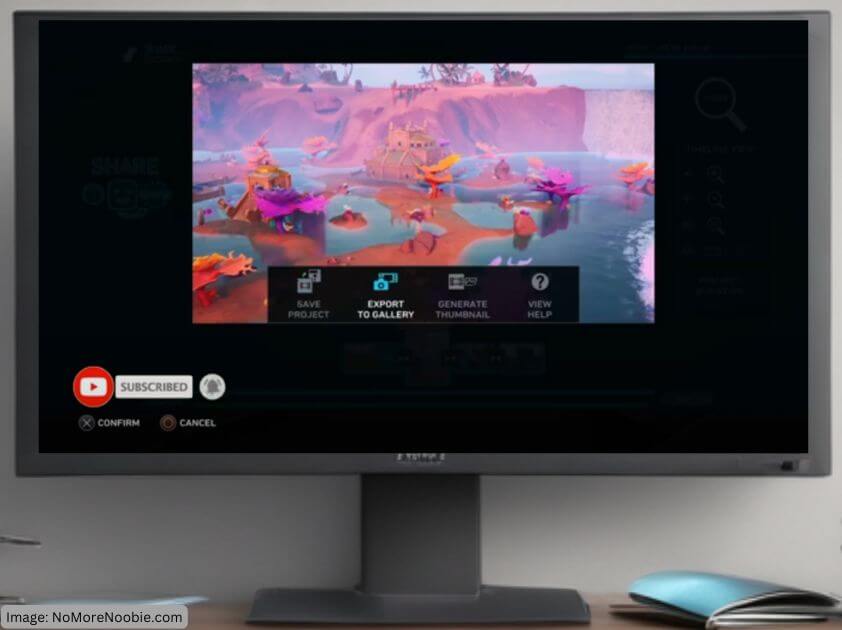
- Once your montage is complete, go to the Options menu.
- Select Export to Gallery to merge all clips into a single video.
- After exporting, close your project, open New Project and add your exported project. This will be one long clip making it easier to add the text wherever you want it to go.
Step 2: Add Text at the Right Moments
Now that your montage is merged, you can sync text with lyrics:
- Play the montage and listen for the first lyric where you want text.
- Pause the video just before the lyric starts using the D-Pad.
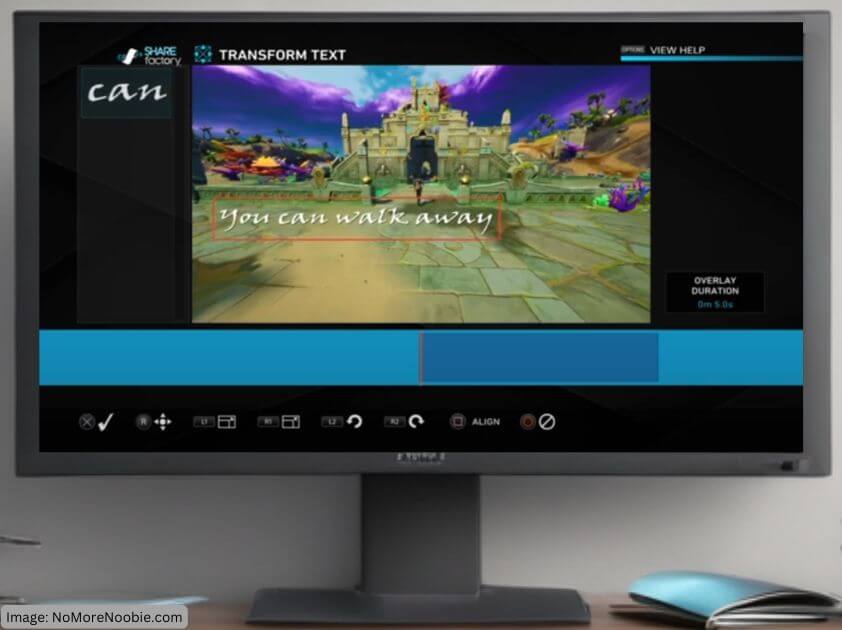
- Press X, Select Add Overlay > Text and choose a font style matching your video’s theme.
- Type in the lyric exactly as you want it to appear. Confirm it.
- Use the Transform option to position the text appropriately on the screen and change size, colour, animation etc. Here you can also rotate text if required.
Bonus Tip: Creating Depth Effects
To add depth, slightly adjust each line of text:
- Move each repeated lyric slightly using Transform for example higher and more to the right.
- Reduce the font size gradually to create a “fading into the distance” effect.
Step 3: Adjust Text Duration for Perfect Sync
After adding the text, it needs to appear and disappear in sync with the lyrics:
- Select the Text Duration option.
- Adjust the end time to match when the lyric finishes.
- Since Sharefactory doesn’t let you hear the audio while adjusting, use trial and error to perfect the timing.
Step 4: Improve Readability with Text Effects
To make text stand out against the background:
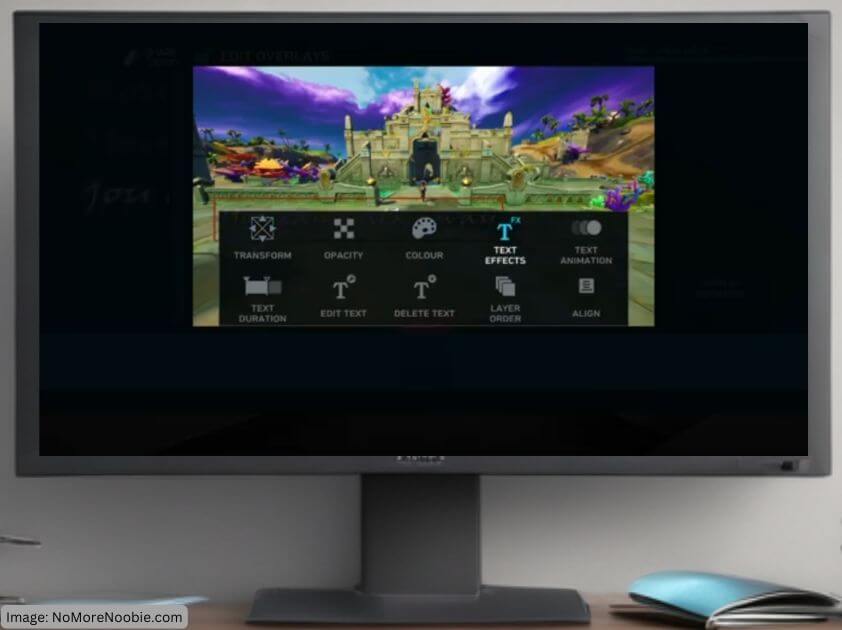
- Press X, select Edit Overlays and choose your text.
- Navigate to Text Effects and select a black outline or any other text effect you like.
- This will make the text clearer, especially against busy backgrounds.
Step 5: Smooth Transitions with Animations
Rather than having text appear and disappear abruptly, you can use animations:
- Press x, select Text Animation and choose Fade In/Fade Out.
- This creates a smoother transition, making the text blend seamlessly with the music.
- Be mindful of duration—long fades may shorten the visible time of lyrics.
Step 6: Final Preview and Adjustments
- Play the video back to ensure everything is perfectly synced.
- Make small adjustments if needed to improve timing and readability.
- Export the final version and review it before sharing!
Recommended Equipment & Tools
To enhance your editing experience, consider using:
- USB Drive – For faster exports and storage (Check it out here).
- Noise-Canceling Headphones – For precise audio syncing (See options).
- External SSD – Improve Sharefactory performance (Best deals here).
Final Thoughts
Syncing text with lyrics in Sharefactory takes patience, but the result is worth it! By following these steps, your montages will look cleaner and more professional. Have you tried this technique? Share your montages in the comments!
For more Sharefactory tutorials, subscribe to my YouTube channel and check out my latest videos! 🚀