
(USB stick and PC needed)
Learn how to add free, non-copyrighted music to Sharefactory from YouTube Music using a USB stick and PC. This step-by-step guide will show you how to add music to sharefactory from YouTube Music PS4, download, transfer, and edit music in your Sharefactory projects, making your gaming videos more engaging.
Adding music to Sharefactory from YouTube Music allows you to enhance your gameplay videos with high-quality, copyright-free music tracks. In this guide, you’ll learn how to download music from YouTube’s Audio Library, transfer it via USB, and import it into Sharefactory on your PS4 or PS5. We’ll also cover basic music editing, trimming, fading, and adjusting volume. Follow these steps to make your gaming videos sound professional.
Table of Contents
How to add music to sharefactory from YouTube Music PS4
Note: You do need a USB stick and PC/laptop to complete this
Step 1: Download Free Music from YouTube Audio Library
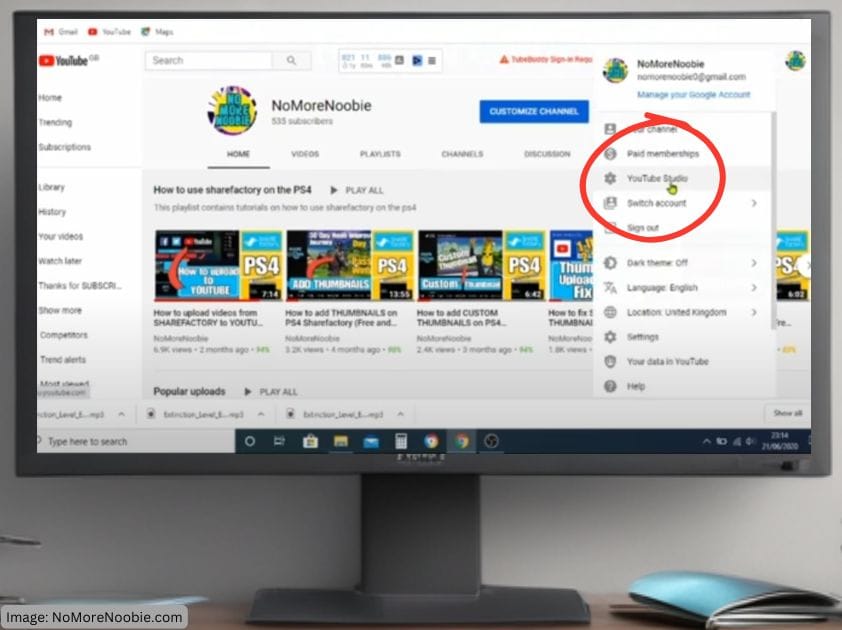
- Go to YouTube Studio:
- On your PC or laptop, sign in to your YouTube account.
- Click on your profile picture and select YouTube Studio from the dropdown menu.
- Access the Audio Library:
- In YouTube Studio, look at the left-hand menu and scroll down to find Audio Library.
- Click on it to open YouTube’s free music collection.
- Browse and Choose a Song:
- You can filter music by mood, genre, instrument, duration, and attribution requirements.
- Check if a song requires attribution. YouTube library songs are copyright-free, but verify before use as important you check this before use.
- Click on a song to preview it.
- Download Your Selected Track:
- Once you find a track you like, click the download arrow next to it.
- The file will be saved to your computer, usually in the Downloads folder.
Step 2: Transfer Music to a USB Stick
- Insert a USB Stick into Your PC
- Make sure your USB is formatted to FAT32 or exFAT, as these are compatible with the PS4/PS5.
- Create a Sharefactory Music Folder
- Open your USB drive and create a new folder named SHAREFACTORY.
- Inside the SHAREFACTORY folder, create another folder named MUSIC.
- Move the Downloaded Track to the USB
- Locate the downloaded MP3 file in your Downloads folder.
- Drag and drop the file into the MUSIC folder on your USB stick.
- Remove the USB stick ready to use in your PS4
Step 3: Import Music into Sharefactory on PS4

- Insert the USB into Your PlayStation
- Plug the USB stick into one of the available USB ports on your PS4.
- Open Sharefactory and Go to “Import Content”
- Launch Sharefactory and go to Import Content > Import Music.
- Select “Import from USB”
- Sharefactory will detect the MUSIC folder on your USB stick.
- Find the downloaded track, select it, and press X to import it.
- Once imported, the music will be available in your Sharefactory library.
Step 4: Add and Edit Music in Your Project

- Open Your Video Project
- Go to My Projects and select the video you want to edit.
- Add Music to Your Video
- Press X to open the Add Menu.
- Select Add Music, then choose the track you imported.
- Adjust the Music Timing
- Use the Move Music tool to position the track in your timeline.
- Split unwanted music parts by selecting X and then press X on Split Music, press X to confirm split music, and then move timeline on to music clips you don’t want and press Square and choose Delete to remove any unwanted music sections.
- Fade In and Fade Out
- To create smooth music effects, press Square, then select Fade In or Fade Out.
- Adjust the fade duration to make the music transition smoothly.
- Adjust Volume Levels
- Press Square and select Music Volume to control how loud the track is.
- You can also set the music to prioritize over gameplay audio and Track 2 if you would like the music to be the main sound on your project.
- Once finished press Circle to leave the music editing section and then continue editing the other areas of your video.
Bonus Tips for Better Music Editing
✅ Use Multiple Tracks: You can add multiple music tracks in your project so you can choose different songs or play the same song throughout your project if prefferred.
✅ Match the Mood to the Gameplay: Pick music that complements the theme of your game.
✅ Experiment with Transitions: Fading music in and out can make your edits feel more professional.
✅ Check Copyright Restrictions: Always make sure you’re using music that won’t get your video demonetized.
Related Articles
🔹 How to Add Voiceovers in Sharefactory
🔹 Best Editing Tips for Sharefactory Studio
🔹 Top Gaming Headsets for Clear Commentary
Recommended Accessories (Affiliate Links)
🎧 Best Gaming Headset for Clear Audio → Check on Amazon
🎙 Affordable USB Microphone for Commentary → Check on Amazon
📂 Compatible USB Stick for PS4/PS5 → Check on Amazon