
Creating family-friendly gaming content is essential for many creators. This tutorial will show you how to Mute Cuss Words in Sharefactory Studio on PS5 from your clips. In this tutorial, I’ll show you how to mute swear words from your gaming videos, step by step and although there isn’t a preset option I will show you a workaround to mute the swear words from your video clip.
Set Up Your Clip in a New Project
Before you start editing, working on a fresh project is a good idea. This helps keep things organised and minimises potential errors.
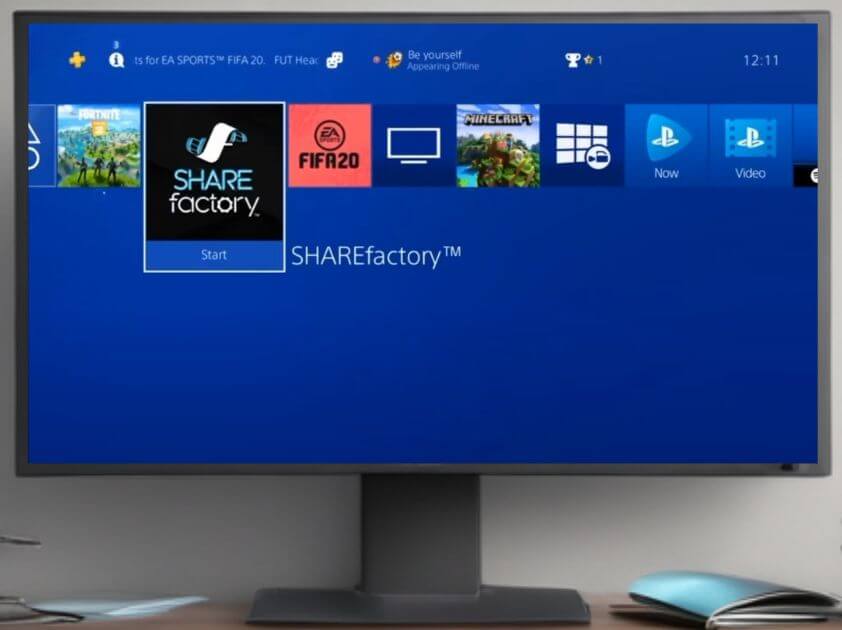
- Start a new project in Sharefactory Studio.
- Import the clip you want to mute.
Bonus Tip: If you’re working on a big project, it’s easier to mute cuss words in a separate smaller project, then export and add the final muted clip to your main video.
Identify the Swear Word
For this tutorial, imagine you’ve added a sound effect, like “yeet,” as a placeholder for the cuss word.
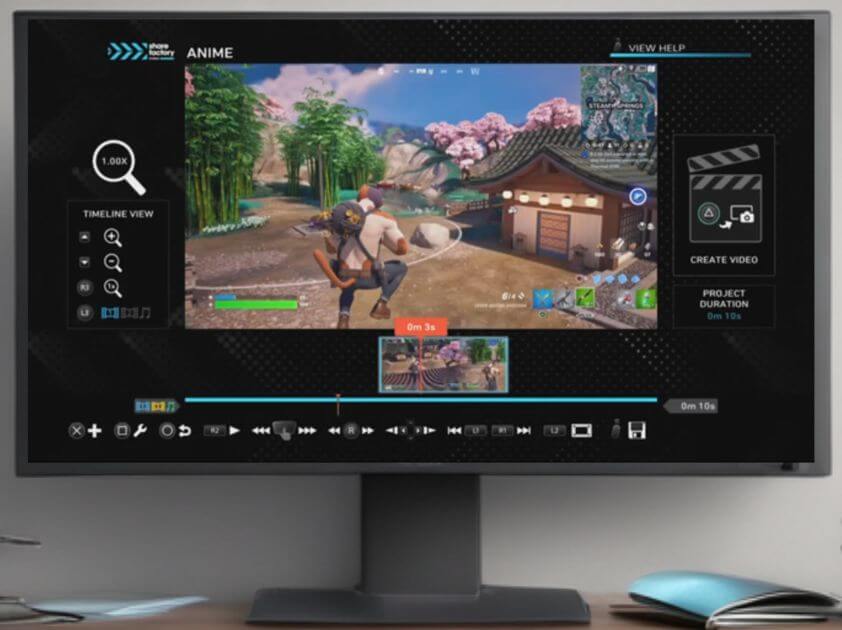
- Play the clip and pause when the swear word has just finished.
- Press the square button on your controller and choose Split Clip.
- Confirm the split so the clip is divided into two sections.
Mute the Cuss Word
Now that your clip is split, you’ll need to mute the part with the swear word.
- Highlight the first section (the one with the swear word).
- Press the square button and select Clip Volume.
- Use the D-pad to bring the volume down to 0.
Your first clip now has no audio, meaning the cuss word is effectively muted.
Overlay the Original Clip
Next, you’ll overlay the original clip to ensure that only the section with the cuss word is muted, while the rest of the audio plays as normal.
- Return to the beginning of the first clip.
- Press the X button and go to Add Track 2.
- Choose the same clip from your media and add it as Track 2.
Now, you have two clips playing simultaneously.
Split and Delete the Overlaid Section
You’ll need to split and delete the section of the overlaid clip where the cuss word was, so it syncs with the muted part.
- Play the video and pause just before the swear word starts.
- Press square and choose Split Clip again.
- Confirm the split and delete the second part of the overlaid clip.
Adjust the Picture-in-Picture (PIP) Layout
Since Track 2 will show as a picture-in-picture, you need to make the video full-screen again.
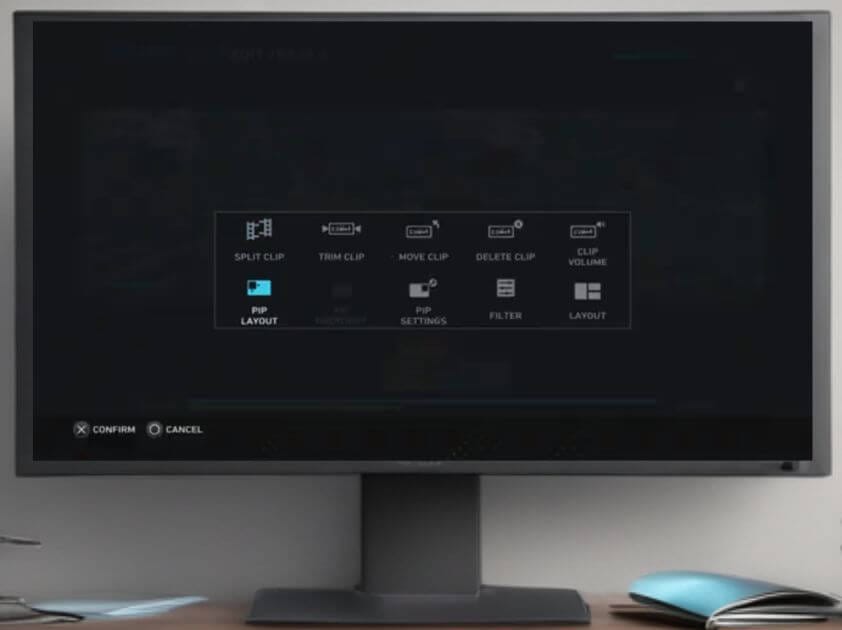
- Press the square button and choose PIP Layout.
- Select Full Screen to return the overlaid clip to the normal view.
You’ve successfully muted the swear word while keeping the rest of the clip intact.
Export and Add to Your Main Project
Finally, export your video and add it to your larger project if necessary. Your clip will now play seamlessly without the swear word.
Bonus Tips:
- Next Steps: Want to fine-tune your edits? Check out our guide on using transitions and effects in Sharefactory Studio to give your videos a professional touch.
- Recommended Equipment: If you’re serious about content creation, consider using a quality gaming headset like the SteelSeries Arctis 7P+ for clearer in-game sound, or an external microphone such as the Blue Yeti USB Microphone for commentary.
By following these steps, you’ll easily be able to mute cuss words in Sharefactory Studio without sacrificing video quality. If you found this tutorial helpful, check out more Sharefactory tips in the related articles below!